Google Maps Issues: Billing Errors
Link: https://support.brilliantdirectories.com/support/solutions/articles/12000057688
Billing problem shown in the admin.
When billing is not active on the Google Cloud project, the Google Maps API Status card on the dashboard shows a red Billing problem on your Google project for the affected key, and the red Google Maps Error button appears at the top of admin pages. Clicking either opens a details window with the billing fix steps. After billing is active, click Test key in that window to clear the alert. See Google Maps Issues: Index for how the alert works.
When billing is not active on the Google Cloud project, the Google Maps API Status card on the dashboard shows a red Billing problem on your Google project for the affected key, and the red Google Maps Error button appears at the top of admin pages. Clicking either opens a details window with the billing fix steps. After billing is active, click Test key in that window to clear the alert. See Google Maps Issues: Index for how the alert works.
CHECK ERROR CODE: Google Maps Issues: Index
If Google Maps locations aren't loading on the homepage or search modules even though the Initial Set Up Steps have been completed, it's most likely because the site is missing the billing information.
This can be easily fixed by logging into the Google API Console:
Next Steps:
1. Once logged in, in the dashboard, click on the "Navigation Menu":

2. From there select "Billing":

3. Now either edit or add a payment method:

If there is a valid card on file, the account may need to be "Activated":

Other important things to check:
You may have multiple projects in your Google Cloud account. Make sure that the billing is enabled for the project that has the Google Maps API key that was added on your site: https://cloud.google.com/billing/docs/how-to/modify-project.
To make sure that the billing is enabled on this project go to: https://console.cloud.google.com/billing
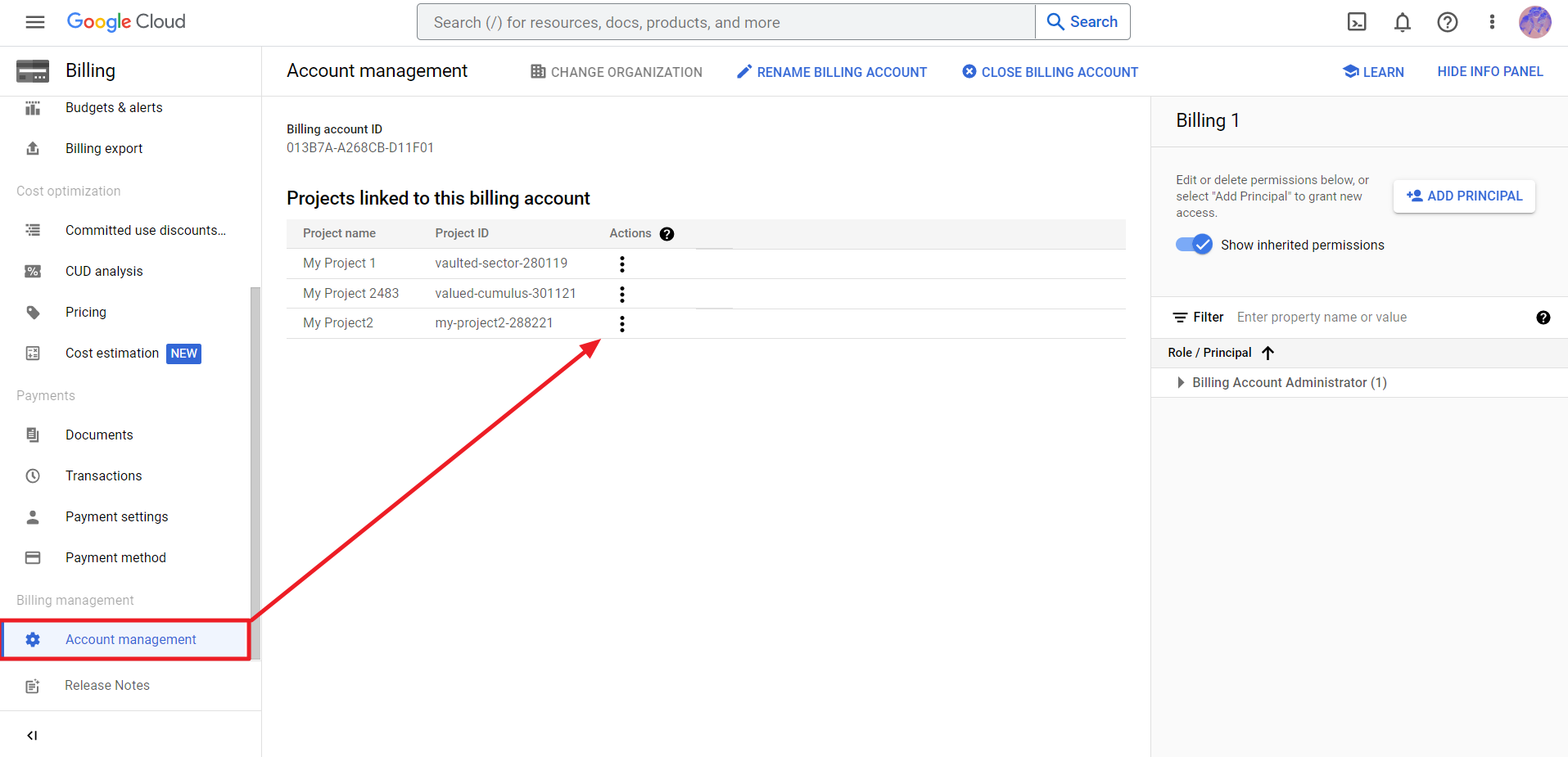
On the sidebar menu, scroll down and click on Manage Account, here all the projects in this Google Cloud account appear, make sure all have the billing enabled by clicking on the 3 dots next to each project: